Spotlight
Crop media
Drop in an image or a video and crop it to any aspect ratio. Pan and zoom under the ratio window, then export a still at source resolution or a trimmed, web-ready MP4.
One of the tools in Aspects for macOS. $19 once, cloud optional.
What it is for
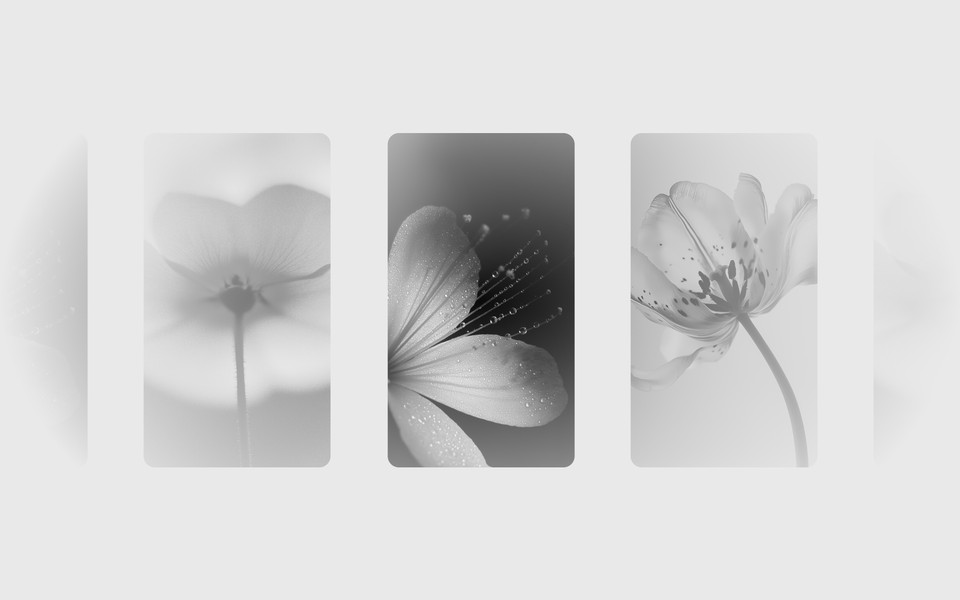
Getting an image or a video to a specific shape when the shape is not negotiable. A 9:16 Reel from a landscape video. A 4:5 feed post from a photograph. A square thumbnail from something that was never square.
Crop is the unframed sibling of Frame. There is no margin and no ground — the source fills the entire output, and you decide what stays inside the frame by panning and zooming it under the ratio window.
How it works
Set the output ratio first, because it is the window everything else moves behind. Then drag to pan and scroll to zoom until the composition sits where you want it. What is inside the window is the export.
For a video source you get the same controls plus a trim, and a choice of output: a still frame scrubbed from anywhere in the clip, or the trimmed clip itself as an MP4.
The ratios name their destinations
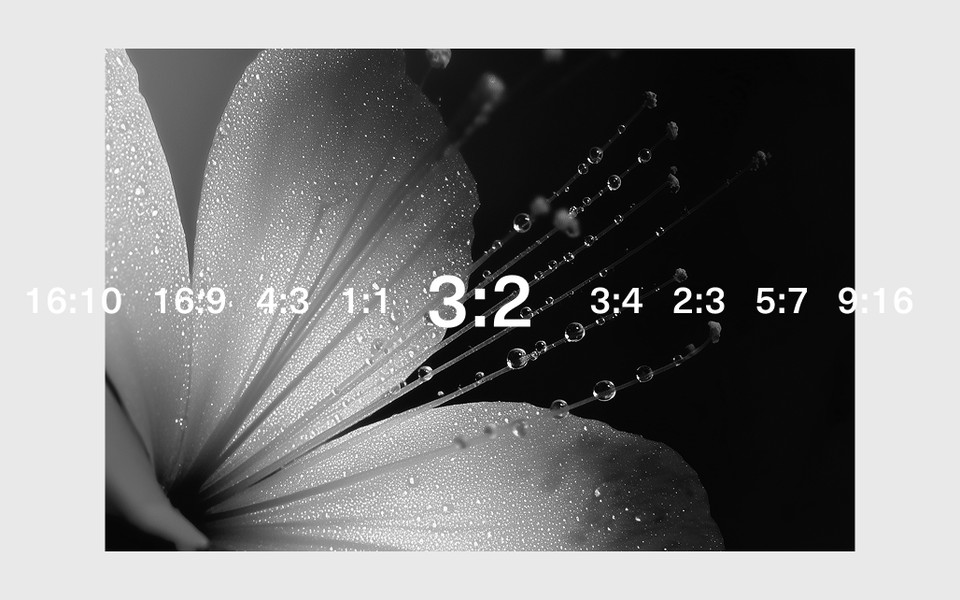
You should not have to remember which number belongs to which platform, so the presets say:
- 9:16 — Reels, Stories, TikTok, Shorts
- 4:5 — the Instagram and Facebook portrait feed
- 3:4 — Instagram's profile grid preview, which moved from square in 2025
- 1:1 — a square post
- 1.91:1 — a link preview card, LinkedIn or X
- 16:9 — YouTube and anywhere landscape video is expected
Print and photography ratios are there too — 2:3, 5:7, 4:3, and the cinematic widths up to 2.39:1.
Compression, for video
Video crops carry a compression preset that controls bitrate and whether the file is optimised for streaming. A 40MB clip that has to go through a messaging app is a different job from an archive master, and the preset is where you say which one this is.
What you get
- PNG or JPEG for a still
- MP4 for a trimmed video, at your chosen compression
- Batch export across a set, same as Frame
One honest limitation
Cropping only removes. If the composition needs something that was never in the source — headroom above a subject, width beyond the edge — no crop will produce it, and Frame with a matching ground is the better tool.