Spotlight
Capture site
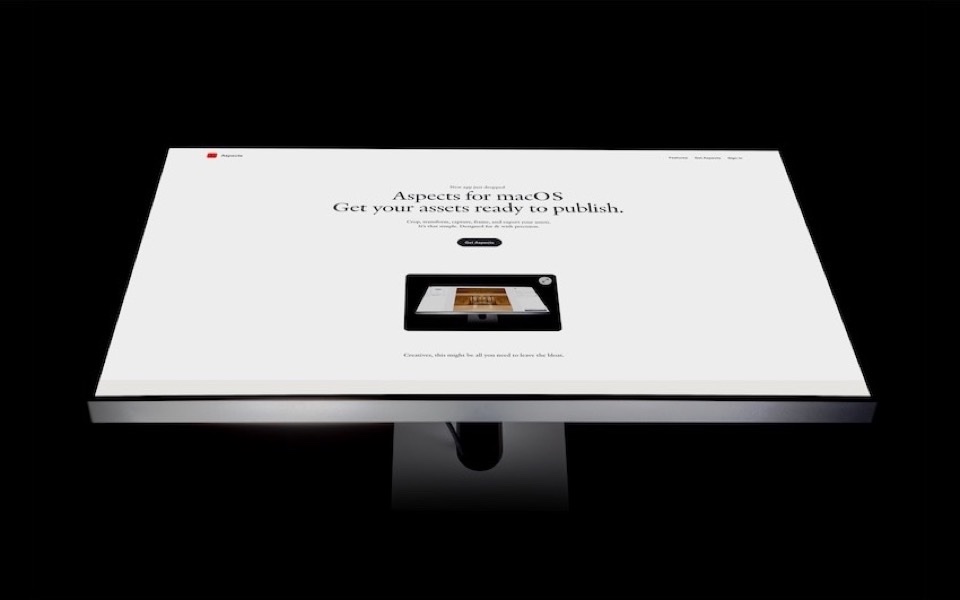
Load any URL in a real WebKit view and drive its scroll with a deterministic timeline. Snap a still, record a live session, or render an MP4 frame by frame.
One of the tools in Aspects for macOS. $19 once, cloud optional.
What it is for
Getting a web page out of the browser and into something you can put in a deck, a feed or a case study. Not a screenshot of your desktop with a browser window in it — the page itself, at whatever size and shape you need, with nothing around it.
Aspects loads the URL in a real WebKit view, which is the same engine Safari uses. That matters more than it sounds: anything you can reach in a browser you can capture. A page behind a login, a staging URL, a localhost port, a design that only exists on your machine.
Three modes, for three different jobs
Snap
A single still, at a chosen scroll position. Press return and you have a PNG or JPEG. This is the mode for a hero image, an app-store screenshot, or the top of a page at a specific width.
Record
Captures the live view while you scroll and interact, and gives you an MP4 when you stop. Use it when the thing worth showing is a behaviour — a menu opening, a form filling in, a hover state — because those need a hand on them.
Record is not deterministic, and that is inherent rather than a shortcoming: it is capturing what happened, and what happened depends on when you moved.
Scroll
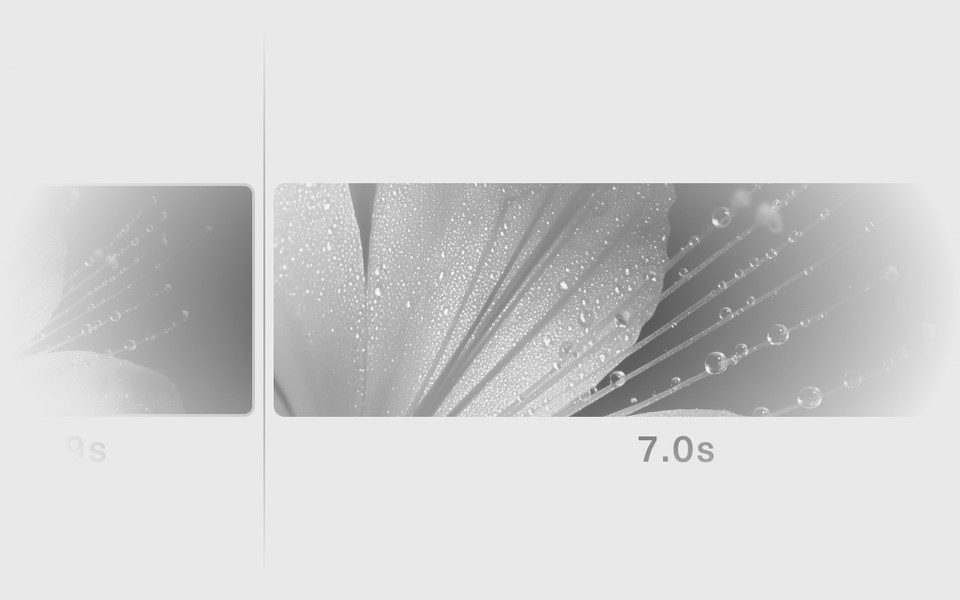
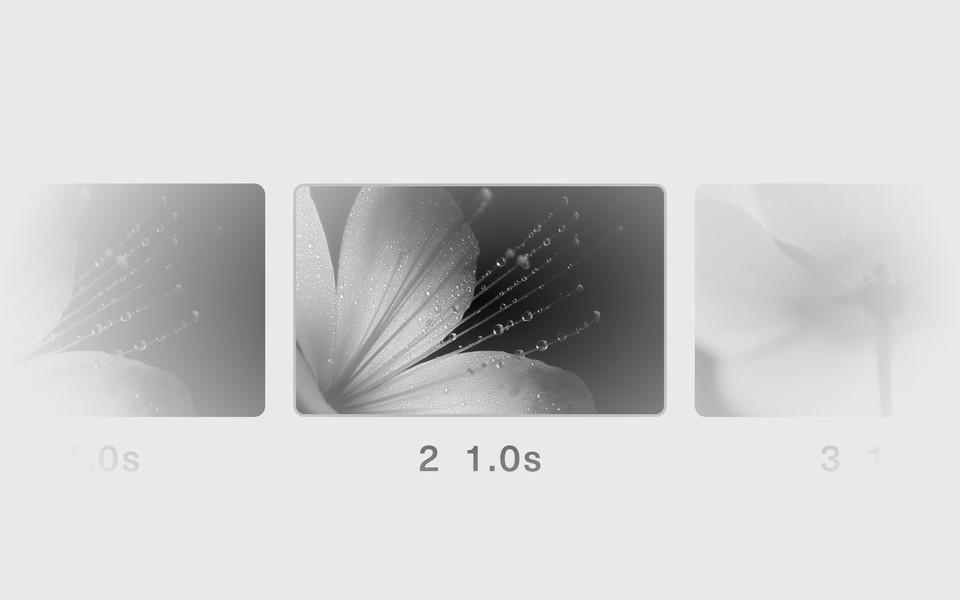
A scroll built from motion steps — go to this position, over this long, with this easing — rendered frame by frame into an MP4. No hands, no timing, no dropped frames. This is the mode for a feed.
Why the scroll output is identical every time
A screen recorder samples whatever the display showed, at whatever rate the machine managed. Record the same scroll twice and you get two different files.
Scroll mode does not sample. Frame N is computed from the scroll position at frame N, with no reference to the wall clock at all. The same artboard produces the same bytes on a laptop on battery and a Mac Studio, today and next month.
Which means you can re-export at a different ratio, or after fixing a typo on the page, and get back exactly what you had — minus the typo.
Set the shape before the motion
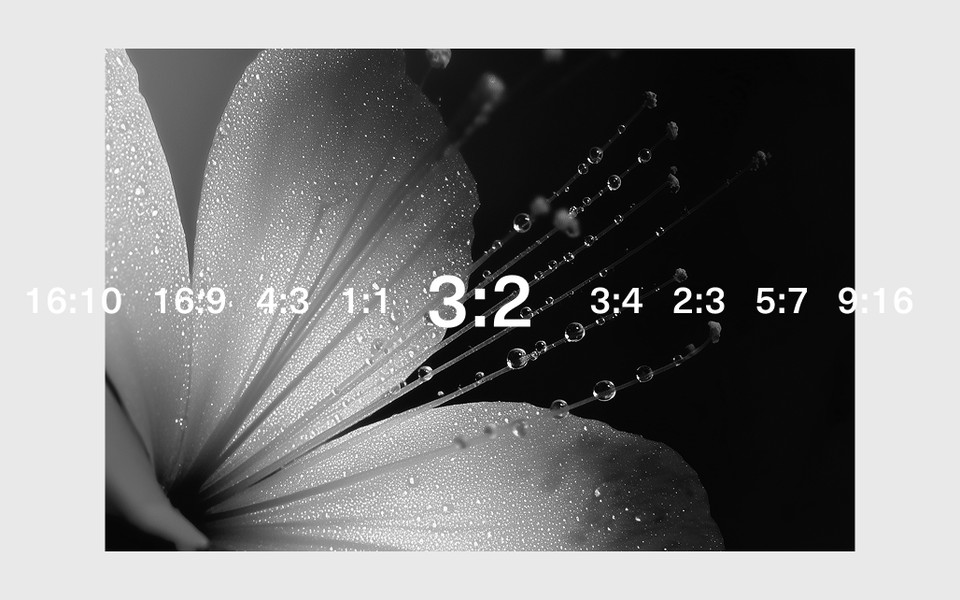
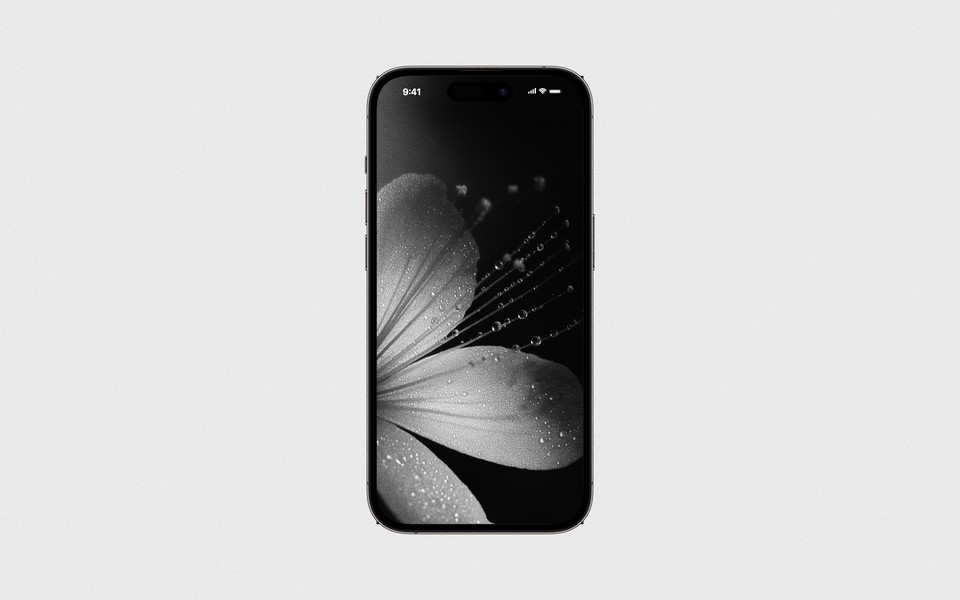
The output ratio decides the composition, so choose it first. A desktop layout inside a 9:16 frame is mostly empty margin. If the output is for a phone, narrow the render viewport too and let the site's own breakpoints do the work — you are capturing the mobile design rather than shrinking the desktop one.
What you get
- PNG or JPEG for a still, including a progressive JPEG if you want one
- H.264 MP4 for Record and Scroll
- Any output ratio, with the render viewport set independently
- An optional cursor composited into exports — hidden, a dot, or the real macOS pointer
One honest limitation
A page that refuses to load in an embedded view will refuse here too, and some sites detect and block automation. There is no way around that from inside a WebKit view, and pretending otherwise would waste your afternoon. If a page loads in Safari it will load here; if it does not, it will not.